

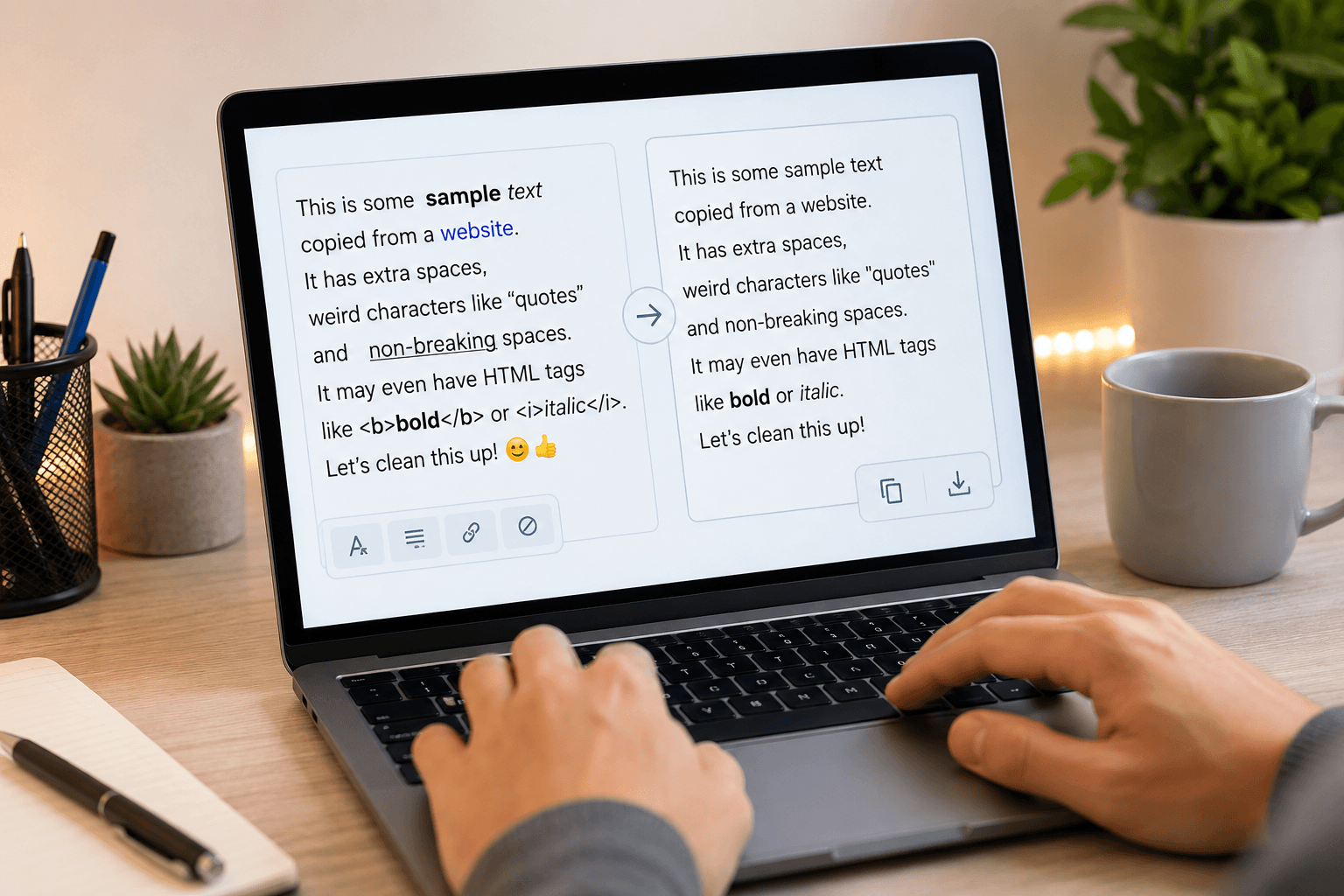
Paste a paragraph from a PDF into an email and watch it fall apart. Words jam together, quotation marks turn into odd curly symbols, and there’s suddenly a line break in the middle of a sentence for no visible reason. A text cleaner is the tool built specifically to undo that mess: it strips hidden formatting, fixes stray characters, and hands back plain, usable text in a couple of seconds.
That sounds simple, and for short snippets it usually is. But the reason copy-pasted text breaks in the first place is more interesting than most guides let on, and knowing it changes how you use these tools.
Why Pasted Text Breaks in the First Place
Text doesn’t just carry letters. Word processors, PDF readers, and web pages embed invisible instructions alongside the visible characters, and those instructions cause most of the chaos people blame on “bad formatting.”
A few specific culprits show up constantly:
- Smart quotes. Word and PowerPoint automatically convert straight quotation marks into curly ones as you type, a setting that’s on by default. Those curly quotes (Unicode U+2018, U+2019, U+201C, U+201D) look fine in Word but often render as a question mark or a box once pasted into code editors, CMS fields, or older systems.
- Non-breaking spaces. Copy from a web page and you may bring along U+00A0 instead of a normal space. It looks identical on screen but behaves differently in scripts, spreadsheets, and search functions, which is why “find and replace” sometimes mysteriously fails to match a space that’s clearly right there.
- Zero-width characters. Some web publishing tools and PDF exporters insert invisible zero-width spaces (U+200B) to control line wrapping. They’re completely invisible, add nothing to what you read, but can quietly break word counts, hyphenation checks, or plagiarism scans.
- A leftover byte order mark. Text files saved with certain encodings carry a hidden U+FEFF character at the very start. It’s invisible in most editors but can show up as a strange symbol when the file is opened somewhere else.
- HTML wrapped around plain-looking text. Copying from a website often brings
<span>and<div>tags with inline styling, even though nothing visually indicates it. Paste that into a CMS and you inherit someone else’s font size, color, or line height without meaning to.
None of this is a flaw in your writing. It’s an artifact of how PDFs, Word documents, and web pages actually encode content behind the scenes. A text cleaner exists to strip that invisible layer back down to plain characters.
What a Text Cleaner Actually Does
At the core, this kind of tool takes formatted or messy input and outputs plain text, with a set of specific operations applied along the way. The strongest ones I’ve tested handle these reliably:
- Removing bold, italics, fonts, and inline styling from rich text
- Stripping HTML tags entirely, including the ones you can’t see
- Collapsing multiple spaces and blank lines into single, consistent ones
- Converting smart quotes and em dashes back into their plain ASCII equivalents
- Removing zero-width and non-breaking spaces
- Deleting emojis, non-ASCII symbols, or accented characters when needed
- Changing case (uppercase, lowercase, title case, sentence case)
- Removing duplicate lines or sorting them alphabetically
Depsek’s own text formatter tool covers the most common version of this: paste text in, pick a case or cleanup option, and get an instant character, word, sentence, and paragraph count alongside the cleaned result. That live count is a small but genuinely useful detail, since it lets you confirm the cleanup actually trimmed something rather than just trusting that it did.
Where This Actually Matters
A text cleaner isn’t just a novelty for people annoyed by weird spacing. It solves real, occasionally costly problems.
Job applications. Applicant tracking systems parse resumes as plain text before a recruiter ever sees them. Curly quotes, em dashes, decorative bullet characters, and non-standard symbols are among the most commonly cited causes of parsing failures, according to resume-screening guides that analyze thousands of submitted documents. A resume built in Word, with its default smart-quote AutoCorrect still switched on, can carry exactly those characters without the applicant noticing. Running the final text through a cleaner before uploading is one of the few five-minute steps with a real, measurable payoff.
Content management systems. Paste text from Word or Google Docs directly into WordPress or a similar CMS, and you often bring inline styles, extra <span> tags, and non-breaking spaces along with it. WordPress even has a built-in function called wptexturize that automatically converts straight quotes and dashes into “smart” typographic versions on the front end, which can create odd-looking doubled formatting if the pasted text already contains curly quotes of its own. Anyone publishing regularly, including the tech and digital services writers on this site, runs into this the moment they paste from an outside doc into the block editor.
Spreadsheets and data imports. A CSV exported from one system and imported into another frequently carries trailing spaces or non-breaking spaces that make two visually identical entries fail to match in a lookup formula. That’s a maddening bug to chase manually, but a text cleaner run across the column fixes it in one pass.
AI and chatbot output. Text copied from a chat interface sometimes includes leftover markdown syntax (asterisks for bold, pound signs for headers) or unusual dash characters that read fine in the chat window but look broken once pasted somewhere without markdown rendering.
Manual Cleanup vs. Using a Tool
For a single sentence, manual fixes are fine. In most word processors and browsers, pasting with Ctrl+Shift+V (or Cmd+Shift+V on a Mac) strips formatting automatically and pastes plain text only, which solves the styling problem without any extra tool. Google Docs, Word, and most browsers all support that shortcut.
Where manual editing breaks down is invisible characters. You can’t select a zero-width space with your cursor, because you can’t see it to click on it. Find-and-replace in Word or Google Docs also won’t easily search for a non-breaking space unless you know its exact code, and most people don’t. This is the actual gap a dedicated text cleaner fills: it treats every invisible character as a matchable, removable target, not just the visible formatting.
For anything longer than a paragraph, or anything going somewhere with strict parsing rules like an ATS or a script, running it through a cleaner is faster and more reliable than manual find-and-replace.
What a Text Cleaner Won’t Fix
It’s worth being direct about the limits, because a few competing tools blur this line. This kind of tool changes formatting and character encoding. It does not:
- Correct grammar, spelling, or sentence structure
- Detect plagiarism or check originality
- Improve tone, clarity, or word choice
- Understand meaning, so it can’t tell you if a sentence is factually wrong
If you need grammar correction, that’s a separate category of tool entirely, and running cleaned text through one afterward is a reasonable two-step workflow: clean first, then check grammar, rather than the other way around, since some grammar tools misread stray formatting characters as errors.
Privacy: Does It Matter Where the Cleaning Happens?
It genuinely does, if you’re pasting anything sensitive. Several tools in this space, including Depsek’s formatter, process text entirely in the browser using JavaScript rather than sending it to a server. That distinction matters more than it might seem: a browser-based cleaner never transmits your text anywhere, while a server-side tool does, even if briefly and even if it claims not to log it. For a paragraph of blog copy, this is a non-issue. For a contract clause, a medical note, or anything with personal data in it, checking whether a tool processes locally is worth the ten seconds it takes to look.
The One Thing Worth Doing Differently
Most guides on this topic stop at “paste your text and click clean.” The step almost nobody mentions: paste the cleaned result into a plain Notepad or TextEdit window (not Word, not Google Docs) before using it anywhere important. Word and Docs will silently reapply their own autocorrect rules the moment you start typing near the cleaned text, quietly reintroducing smart quotes or auto-formatted dashes. A true plain-text editor won’t touch it. That one extra step catches the formatting creep that undoes half of what the cleaner just did.
Frequently Asked Questions
Does a text cleaner remove grammar mistakes too?
No. It only changes formatting, spacing, and special characters. Grammar and spelling remain exactly as typed, so a separate grammar checker is still needed for that step.
Will cleaning my resume actually help it pass an ATS?
It can help, particularly if the original was built in Word with smart quotes and default bullet styling still active, since those are common, well-documented sources of parsing errors. It won’t fix layout issues like multi-column formats or text boxes, which need to be restructured separately.
Why do my quotation marks turn into question marks after I clean text?
That usually means the destination system doesn’t support the same character encoding as the smart quotes you started with. Cleaning tools that convert curly quotes to plain straight quotes (' and ") avoid this entirely, since standard straight quotes work in virtually every system.
Can it handle an entire document, or just short snippets?
Most browser-based cleaning tools handle documents of any length, since they’re just processing text strings rather than files. The practical limit is usually how much text you’re comfortable pasting into a single box, not any hard technical cap.
Is removing all formatting always the right move?
Not always. If you’re preparing text for a plain-text destination like code, a CSV, or an ATS, yes. If you’re moving formatted text between two documents that both need to keep bold headings or bullet lists, you want a tool that only strips the invisible junk, not one that flattens everything to plain text.
